Showing posts with label mozilla. Show all posts

Tuesday, 9 June 2009

BloatedFox

Firefox – pile of crap!

bloatyfox

Was my final assessment after all the extensions I had installed meant my one and only Firefox profile, ate up 1GB of memory.  Took over 2 minutes to load.  And rattled along like a paddle steamer in the middle of a drought.  But it had all my passwords, bookmarks, automatic this, auto that, and – once it loaded, settled down, browsing however slovenly was somewhat a joy.

But it was time for radical treatment, to prune this overwhelming bush back to something more manageable.  As used to occur with XP once to many applications were in/uninstalled, caused it to run like a brick pulling a tractor, the only cure was a format and clean operating system re-install.

So down I dug and created two additional profiles, two bare bone profiles. 

But even with the extension list pared to the bone, there are simply some things I can’t live without: i.e., noscript, finjan and mouse gestures.  Simply typed those into the add-on search section of mozillas’ website downloaded and installed.

A quick restart later, everything in the browser was looking a bit sparse (I had forgotten how boringly dull the default theme looked), so decided to install adblock. 

Final browser restart, visited my usual sites and considering the time and connections, I was once more impressed with how speedy it (Firefox 3.0.10) actually is when it’s not a bloated loaded down monster.  Admittedly it’s still slower to start up than Chrome 3 or Opera 10, but it’s faster than IE 8 and Safari – on my system. 

fabfox With Firefox’s faster engine and other associated tweaked bits in 3.5 soon to bolt from the stable, my three suitably primed profiles armed, it looks as if my love-in with FF is back on, in the love fest that calls itself the interweb!

Wednesday, 19 November 2008

Firefox 3.0.4 update tweak

Not quite sure whether it's me or the code on the pages i usually visit have been cleaned up, or the guys & gals beavering away behind the scenes on ff3 have at last sorted out the memory issues.

But, for the first time in ages ff no longer claws its way through all the available memory, until it either falls over or slows everything else down.. 

Up until today, it had reached the stage where the the browser would after a short period of time need  restart. Once response times became sluggish and ff easily chomping its way to nearly 1GB nothing else would work except a restart. 

It's been open for nearly half an hour with my usual windows tabs open and it's hovering contentedly around the 70MB mark.

So far, a hearty thumbs up!

Friday, 17 October 2008

Fattening fox

I have, albeit briefly, fallen out of love with my favourite browser - firefox.  We had a wonderful affair going back many years when all was perfect.  From when it initially poked its head through the holes left by the thundering internet exploriphant, which had terminally wounded the previous king of the jungle - netscape. 

Through thick and thin, when ff refused to load bookmarks or refused to put them in the correct locations, to losing all the passwords in a minor tiff!  Through all of that we patched up and roared on.

But with the growing popularity of the add-ons things took a slight turn for the worst.  Was it a badly written meal ff had digested, causing it to go a strange colour of blue?  No just a badly prepared theme i'd stupidly installed.  But its initial speed was slowing, on some occasions even taking longer to load a page than it took ie to load and be ready.  Blasphemy! 

The last time - when the camels back finally broke - ff was still loading up long after i'd loaded up chrome, checked my banking balance the weather and what was on at the local cinema before it sputtered onto screen.

What was going on?

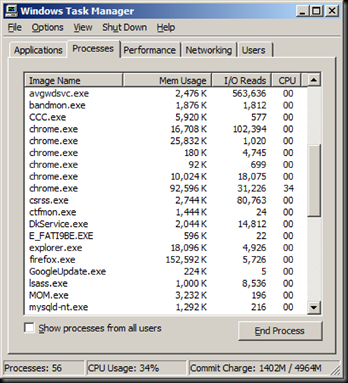
A quick look through the trusty task manager brought up a few home truths.  Chrome with five tabs open was taking up only 56MB of ram. Firefox on the other hand (whilst still in its loading phase), was chugging through over 1.3GB of memory; before settling down to a relatively wieldy 215MB. 

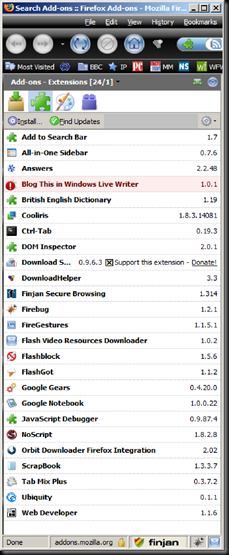
The only thing that had changed was the inclusion of more add-ons (figure 1). New add-ons that are recommended by someone you know which they just can't live without, you just have to try.  That other slightly strange but winking at you add-on from the pages of the latest magazine to hit the door, or viewed on a site, all offer time saving, enjoyment having wasting more time than sense hours of fun. The time had arrived to ruthlessly remove all those juicy helpful helpers.  To return the browser to a state of speed and efficiency - you might even find it crashes less frequently too. 

Figure 1. Add-ons
ff-addons1

Sigh, what to remove and what to keep...

  • The all-in-one sidebar I regularly use for its unabashed over helpful organisational abilities. 
  • The latest add-on was Tab Mix Plus, which looks good adds to the functionality but I can do without for the time being.
  • Scrapbook is good but somewhat duplicating Google notebook so that will have to go.
  • Fire gestures - mouse gestures certainly require that onboard.
  • Firebug haven't really used it so that can go.
  • As can answers since I now use ubiquity for so many things.

...and on you go, through each add-on and saying yes or no.  Once you've reached the end of your list, you can restart firefox.


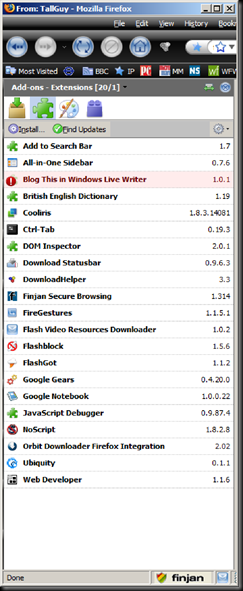
Firefox now consumes just 165 MB of memory to open before settling down to a modest 152MB. By just removing 5 add-ons the start up time has dramatically improved, and as seen below its memory footprint is now more manageable.
ff-addons2


The image following shows how the new look slimmed down version looks:
ff-addons3


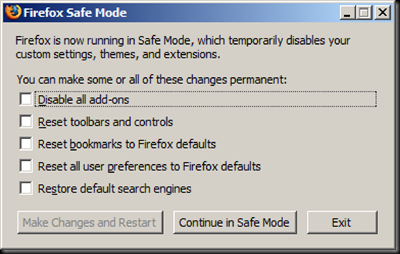
So if firefox is causing you problems it may more than likely be an arrant add-on.  The best thing is to start the browser in safe mode:

Start menu -> all programs -> mozilla -> mozilla firefox (safemode)

which will bring up the following window:
ff-addons4

Simply check the disable all add-ons option and click the continue in safe mode.  If that works and it starts okay (best to wait before the wonder of watching it zoom along is lost), then it is with great probability your add-ons.

Go on a helpful worthwhile mission: the add-on decluttering mission, and watch ff fly.

Tuesday, 2 September 2008

First play of chrome

The hours tick by as many people await the browser everyone is talking about. Google with another launch, wonder if it will have browser-beta somewhere? This is beginning to look like apple fanmania.

Reminds me of the hoop-la when gtalk arrived. Haven't seen any major im's falling by the wayside just yet.  The fact their non-related sibling (mozilla) wasn't told... well let's just see what happens, in just under three years time.

Currently using ff3 quite happily.  Followed by safari/opera then ie8 - just to test website compatibility - and viewable by the majority of browsers in use. Out there in the internet viewing world.

Its here!

chrome-2

And first looks are, not sure I like the colour. But that'll change. Tabs? Can go with those, on a 24" lcd it's quite spacious - looks less crammed.

And not a beta tag to be seen! Now this is different, time to tinker...

chrome-1

Easy installation, hasn't crashed yet... more play

For those who haven't tried it yet, it can be downloaded from here.

Thursday, 28 August 2008

Firefox 3 surpassed by IE8 beta 2

According to a reviewer on the Cnet website: IE 8 beta gives other browsers a run for their money.

...

In another feature, known as InPrivate, Microsoft allows the user to suspend caching functions while you surf. The scenarios for using InPrivate include when you're using someone else's computer, like for instance, when you need to buy a gift for a loved one without ruining the surprise, or when you're at an Internet kiosk and don't want the next person to know which Web site you visited. While you can currently clear the browser cache with a mouse click, it's an all-or-nothing action. InPrivate temporarily suspends the automatic caching functions, allowing you to keep the rest of your browsing history intact. Apple Safari has offered this feature for a while, but Mozilla Firefox does not.

http://news.cnet.com/8300-1009_3-83.html?tag=hdr;snav

Now if the reviewer on the cnet site had done, let's say, 2 seconds worth of digging amongst the extensions available for firefox, he'd have found an extension which incorporates that particular function (and has done so since the first half of 2007), which IE8 beta2 only now includes.

And it's called stealther 1.0.6, by Filip Bozic and was last updated on June 16 2008.

Technically the reviewer is correct.  The stripped down bare bone basics of mozilla firefox doesn't offer that function, in its native form.  But people tend to go with firefox, not only for the extra bit of security, but the freedom to mix and match the perfect add-ons that suit their own set of particular circumstances.

Wednesday, 27 August 2008

Ubiquity

Every now and then, something comes along that after first viewing and using sends a tingle along the full length of your spine.  Something that has the potential to change the way we've done and used things, and makes you think where have you been all my life!

Welcome ubiquity!

After a quick download, install into FF3 and restart, the first few commands worked instantly. No falling over.  No errors.  It dramatically cut down on the number of clicks, tab openings and browser swapping that one needs to do.

You can see how powerful this small extension will be, once it's combined with a voice application such as dragon naturally speaking or, once computers can accurately monitor them, hand gestures.

For an alpha release, it is - at first use - very impressive.  Ubiquity is one to watch.  If you're not a fan of alpha releases, grab it once it's in beta.

Once downloaded it's a simple case of firing up the ubiquity interface, by pressing Ctrl + Space Bar.  You can then use one of the commands that follows below; with the promise, over time, of many more commands becoming available. So subscribe to a feed or an email list, and be kept up to date with availability.

Ubiquity's like yahoo pipes, but with an added UI layer and way less complex to get decent use out of.  So use as is, or if you enjoy tinkering and trying out, delve as deeply into it as you wish.

List of ubiquity commands:

add-to-calendar

Adds an event to your calendar. Currently, only works with Google Calendar, so you'll need a Google account to use it. Try issuing "add lunch with dan tomorrow".

amazon-search

Searches Amazon for books matching your words.

answers-search

Searches Answers.com for the given words.

ask-search

Searches Ask.com for the given words.

bold

If you're in a rich-text-edit area, makes the selected text bold.

bugzilla

Searches Bugzilla for Mozilla bugs matching the given words.

calculate

Calculates the value of a mathematical expression. Try it out: issue "calc 22/7 - 1".

check-calendar

Checks what events are on your calendar for a given date. Currently, only works with Google Calendar, so you'll need a Google account to use it. Try issuing "check thursday".

close-related-tabs

Closes all open tabs that have the given word in common.

close-tab

Closes the tab that matches the given name.

command-editor

Takes you to the Ubiquity command editor page.

command-list

Takes you to the page you're on right now.

convert

Converts a selection to a PDF, to rich text, or to html.

define

Gives the meaning of a word. Try issuing "define aglet"

delete

Deletes the selected chunk of HTML from the page.

digg

If not yet submitted, submits the page to Digg. Otherwise, it takes you to the story's Digg page. by Sandro Della Giustina - licensed as MPL,GPL View more information at http://www.gialloporpora.netsons.org.

ebay-search

Searches EBay for auctions matching the given words.

edit-page

Puts the web page into a mode where you can edit the contents. In edit mode, you can edit the page like any document: Select text, delete it, add to it, copy and paste it. Issue 'bold', 'italic', or 'underline' commands to add formatting. Issue the 'save' command to save your changes so they persist even when you reload the page. Issue 'stop-editing-page' when you're done to go back to the normal page viewing mode.

email

Begins composing an email to a person from your contact list. Currently only works with Google Mail, so you'll need a GMail account to use it. Try selecting part of a web page (including links, images, etc) and then issuing "email this". You can also specify the recipient of the email using the word "to" and the name of someone from your contact list. For example, try issuing "email hello to jono" (assuming you have a friend named "jono").

escape-html-entities

Replaces html entities (<, >, and &) with their escape sequences.

flickr

Searches Flickr for pictures matching your words.

get-email-address

Looks up the email address of a person from your contacts list given their name.

google

Searches Google for your words.

help

Takes you to the Ubiquity main help page.

highlight

Highlights your current selection, like this.

imdb

Searches the Internet Movie Database for your words.

italic

If you're in a rich-text-edit area, makes the selected text italic.

last-email

Displays your most recent incoming email. Requires a Google Mail account.

link-to-wikipedia

Turns a selected phrase into a link to the matching Wikipedia article. Can only be used in a rich text-editing field.

map

Turns an address or location name into a Google Map. Try issuing "map kalamazoo". You can click on the map in the preview pane to get a larger, interactive map that you can zoom and pan around. You can then click the "insert map in page" (if you're in an editable text area) to insert the map. So you can, for example, type an address in an email, select it, issue "map", click on the preview, and then insert the map.

map-these

Maps multiple selected addresses or links onto a single Google Map. (Experimental!)

msn-search

Searches MSN for the given words.

redo

Redoes your latest style/formatting or page-editing changes.

remove-annotations

Resets any annotation changes you've made to this page.

save

Saves edits you've made to this page in an annotation.

stop-editing-page

If you used the 'edit page' command to put the page into editable mode, use this command to end that mode and go back to normal page viewing.

syntax-highlight

Treats your selection as program source code, guesses its language, and colors it based on syntax.

tab

Switches to the tab that matches the given name.

tag

Adds a tag to describe the current page by Dietrich Ayala - licensed as MPL/GPL/LGPL View more information at http://autonome.wordpress.com/.

tinyurl

Replaces the selected URL with a TinyUrl

translate

Translates from one language to another. You can specify the language to translate to, and the language to translate from. For example, try issuing "translate mother from english to chinese". If you leave out the the languages, Ubiquity will try to guess what you want. It works on selected text in any web page, but there's a limit to how much it can translate at once (a couple of paragraphs.)

twitter

Sets your Twitter status to a message of at most 160 characters. You'll need a Twitter account, obviously. If you're not already logged in you'll be asked to log in.

undelete

Restores the HTML deleted by the delete command.

underline

If you're in a rich-text-edit area, underlines the selected text.

undo

Undoes your latest style/formatting or page-editing changes.

view-source

Shows you the source-code of the web page you're looking at.

weather

Checks the weather for a given location. Try issuing "weather chicago". It works with zip-codes, too.

wikipedia

Searches Wikipedia for your words. by Blair McBride - licensed as MPL. View more information at http://theunfocused.net/moz/ubiquity/verbs/.

word-count

Displays the number of words in a selection.

yahoo-search

Searches Yahoo for pages matching your words.

yelp

Searches Yelp for restaurants matching your words. You can search for restaurants near a certain location using the near modifier. For example, try "yelp pizza near boston".

youtube

Searches YouTube for videos matching your words.

zoom

Zooms the Firefox window in or out.

One thing, it is javascript based.  As it pulls many elements together, it brings added layers of usability and freedom, but (until it's fully tied down) you will need to keep an eye on potential security issues, if using commands from non-trusted sites.

 ubiquity